Before you start:
You must be on campus to register your devices to BroncoFi.
You may need to turn off “private Wi-Fi addresses” for devices you register to the BroncoFi network. This feature is turned on by default starting with iOS 14, iPadOS 14, and watchOS 7, and with Android 10.
For smartphones and tablets, use eduroam rather than BroncoFi.
- More information, and instructions for how to do this, from Apple
- You need to know the MAC address for each device you will register.
- How to find the MAC address for common devices
Once your device is registered, make sure you connect it to BroncoFi (not eduroam or SCU-Guest).
To register your devices:
1. Open a browser and go to the device-registration portal.
2. When prompted, enter your SCU Username followed by @scu.edu (in the form bbronco@scu.edu), and password.
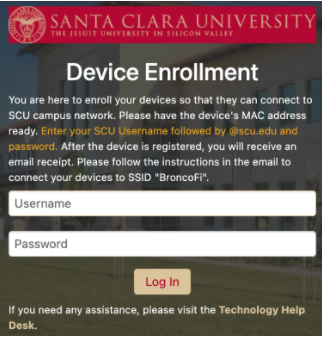
3. For a new device enrollment, click "Create Device" on the left-hand side of the page. You will see the webpage below:
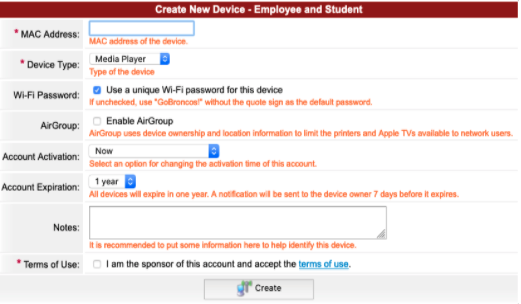
- MAC Address: Enter your device's MAC address
- Device Type: Select the appropriate device type. If you don't see yours, select "Generic."
- Wi-Fi Password: Ensure this box is checked to create a unique password for your device. This password will be displayed here and also be included in the registration receipt sent to the Contact Email address.
- AirGroup: Typically left blank. (See details below about using AirGroup.)
- Account Activation: Leave this set to the default value.
- Account Expiration: Leave this set to the default value.
- Notes: (optional) Enter a description of your device.
- Terms of Use: Review the linked terms of use, and check the box to accept those terms.
- Click Create to finish the registration process.
4. Once the registration process is complete, you will receive an email receipt. Follow the instructions in the email to connect your device to BroncoFi.
Using AirGroup
Check the box to enable AirGroup if you are registering a device that you are casting to or communicating with, from another wireless device.
- An AirGroup allows you (and those you specify) to communicate with the registered device from both the eduroam and BroncoFi networks.
- By default, this will be a personal AirGroup, so that only you will be able to connect to the device you are registering.
- Optionally, if you will be sharing access to the device with your roommate or others at SCU, then enter their SCU Username(s) (in the form of bbronco).
How to register a gaming console for the wired network
Students living in SCU’s residence halls will be provided a wired network connection on request.
To request a wired network connection, first register your device, then request your network connection.
First, follow the steps above to register your device. Leave the AirGroup box unchecked for a device that will go on the wired network.
Once the device is registered, open a ticket with the Tech Help Desk to have your room’s network jack activated if you have tried connecting your device to any of those jacks unsuccessfully.
Please log into https://help.scu.edu. Click on the Information Services button then the Create a Help Ticket button.
Select category "Network Assistance" and use the subject "Jack Activation." Please include the following information:
- Building and room number
- Jack number
- Attach a photo of the jack (making sure any labels are visible)
- Your device's MAC address (leave the device plugged if possible so it's easier to confirm the right jack is active)
Click on 'Submit' when done.